Forecloud Technologies Pvt. Ltd. - How to Revalue Inventory Using the Item Revaluation Journal in Business Central
In Microsoft Dynamics 365 Business Central, inventory revaluation allows businesses to adjust the value of their items.
In Microsoft Dynamics 365 Business Central, inventory revaluation allows businesses to adjust the value of their items either appreciating or depreciating them based on updated cost information or market conditions. This process is carried out using the Item Revaluation Journal.
To revalue inventory
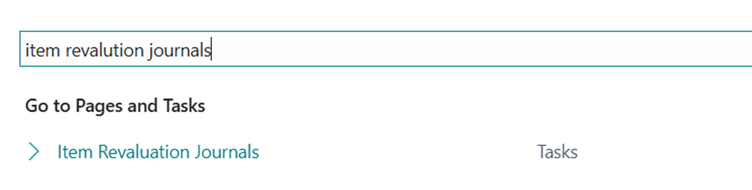
- Select Search in the upper-right corner, enter Revaluation Journal, and then choose the related link.
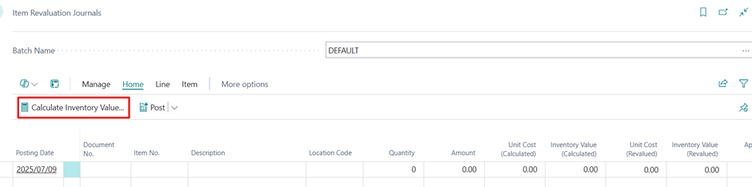
- Choose the Calculate Inventory Value action.
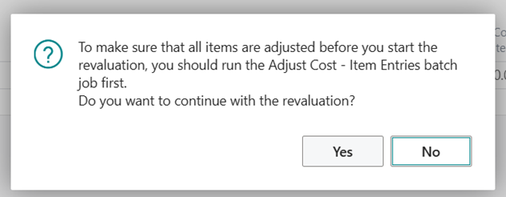
- Confirmation message box will appear.
- On the Calculate Inventory Value page, fill in the fields as necessary. Hover over a field to read a short description.
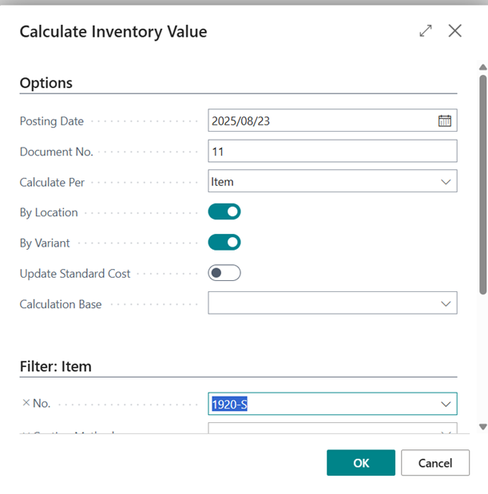
- Enter Parameters on the Calculation Page
- In the Calculate Inventory Value window:
- Select the appropriate Posting Date.
- Enter a Document No. to identify the journal entry.
- In the Calculate Per field, choose whether to calculate by item, item ledger entry, etc.
- If necessary, enable Calculate per Location and Calculate per Variant.
- In the No. field, specify the Item Number or other relevant criteria.
Click OK to proceed. This will populate the journal with relevant item entries based on your selections.
- On each line on the Item Revaluation Journals page, in the Unit Cost (Revalued) field, enter the new unit cost. Alternatively, enter the new total amount in the Inventory Value (Revalued) field.

- The relevant fields are automatically updated. The Amount field shows the actual change in inventory value for the selected item ledger entry. It calculates the difference between the Inventory Value (Calculated) field and the Inventory Value (Revalued) field.
- When you have completed all lines in the revaluation journal, choose the Post action.
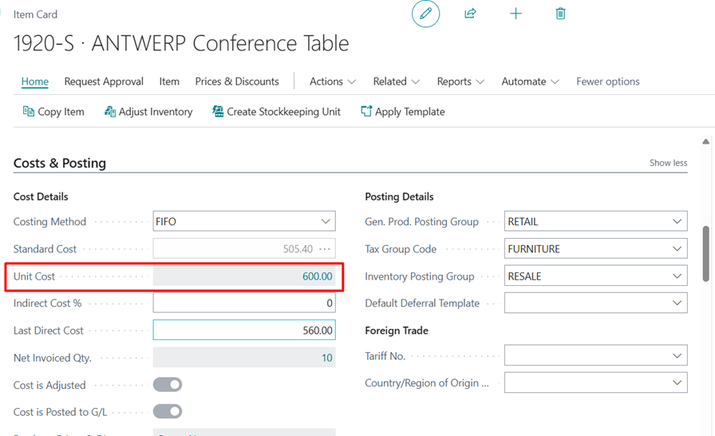
New value entries are now created to reflect the revaluations that you have posted. You can see the new values on the respective item cards.
Result of Posting
- The Unit Cost value on the Item Card is updated accordingly.
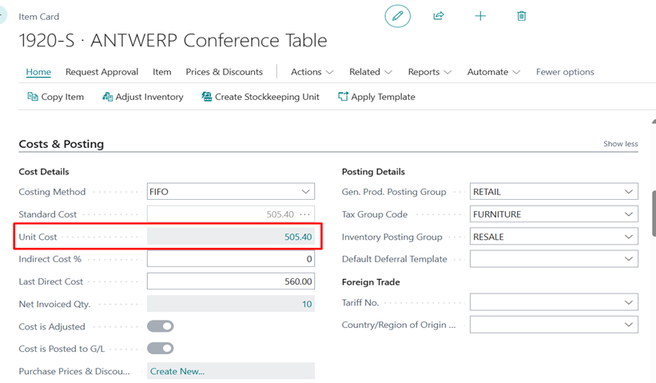
- Unit cost value after posting the journal will be updated in item card.
Conclusion
Revaluing inventory is a vital task for maintaining accurate and transparent financial records.
By following the steps outlined above, users can efficiently update the unit cost of items in Business Central.
Prathama Deshpande
Prathama Deshpande is Business Central Consultant working with Forecloud Technologies. She is one of the key responsible person for Business Central Customization Development, Functional Implementation and Support.
No comments yet. Login to start a new discussion Start a new discussion