Forecloud Technologies Pvt. Ltd. - Item Reservation feature in Microsoft Dynamics 365 Business Central
The Item Reservation feature in Microsoft Dynamics 365 Business Central is used to allocate available inventory to specific demand such as sales orders, production orders, or transfer orders.
Introduction:
The Item Reservation feature in Microsoft Dynamics 365 Business Central is used to allocate available inventory to specific demand such as sales orders, production orders, or transfer orders.
This ensures that required quantities are secured for a particular transaction and cannot be used elsewhere, helping to:
- Prevent stock conflicts
- Improve order fulfilment accuracy
- Support better planning and availability tracking
Pre-requisites:
- Business Central Environment
Item Reservation Setup and Process
1. Configure Reservation on Item Card
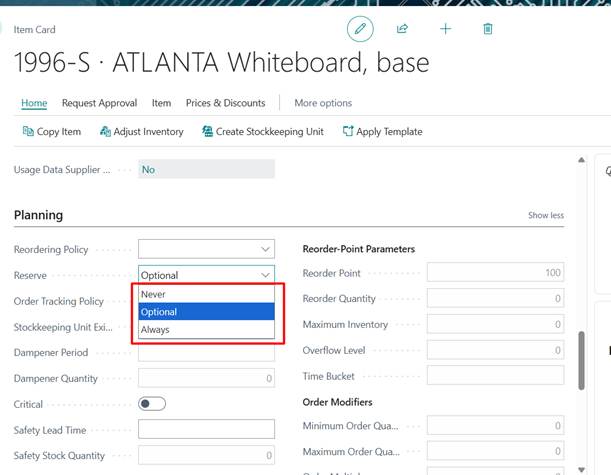
On the Item Card, you can define how the system handles reservations using the Reserve field.
Reserve Options:
1. Never: It is not possible to reserve the item.
2. Optional: You can reserve the item manually.
3. Always: The item is automatically reserved from demand, such as sales orders, against inventory, purchase orders, assembly orders, and production orders.
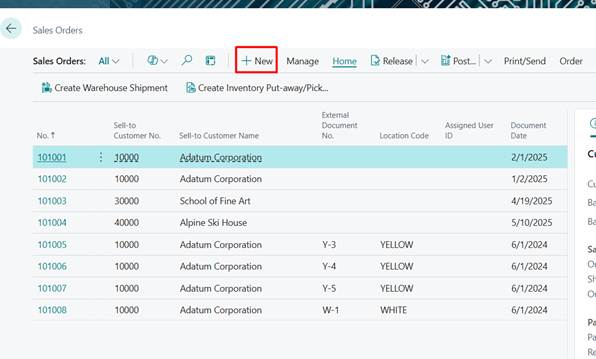
Create a Sales Order
- Create a new Sales Order.
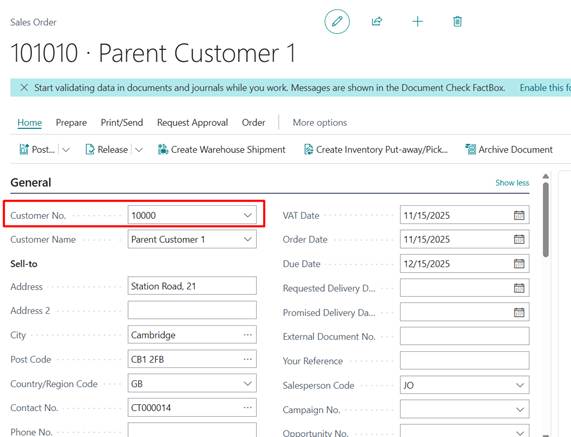
- Enter the Customer No.
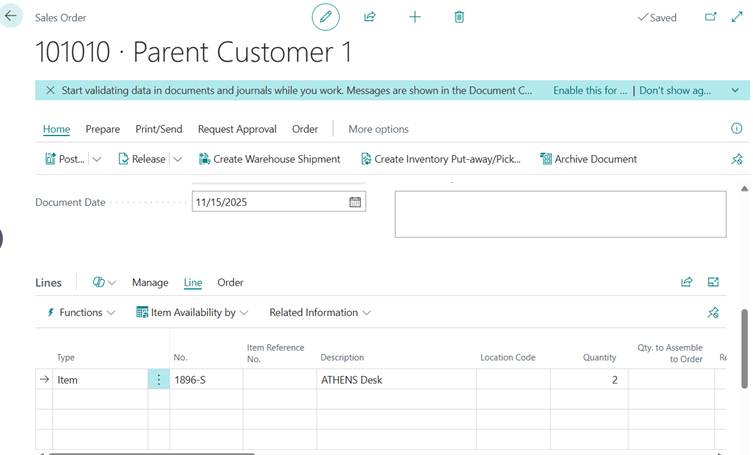
- Add the required item(s) in the Lines FastTab.
3. Reserve Items
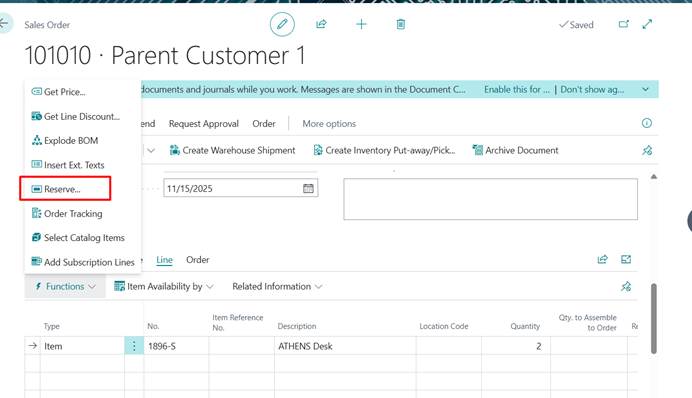
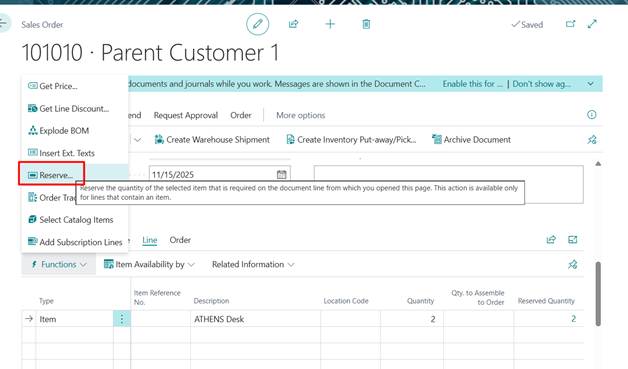
- In the Lines FastTab, select the relevant sales line.
- Choose the Reserve action to open the Reservation Page.
- Select the line you want to reserve.
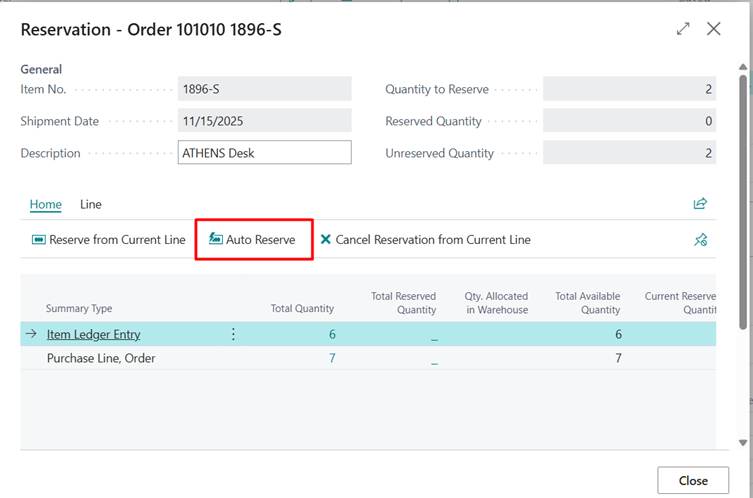
Available Actions:
| Auto Reserve | Automatically reserve items on the Reservation page. |
| Reserve from Current Line | Reserve the items on the selected line. |
| Cancel Reservation from Current Line | Cancel reservation of the items on the selected line. |
- If the user Click on Auto Reserve and the system will make the necessary reservations against your shipping quantity. By clicking on Reserve below page will open.
Click Reserve from Current Line → manual reservation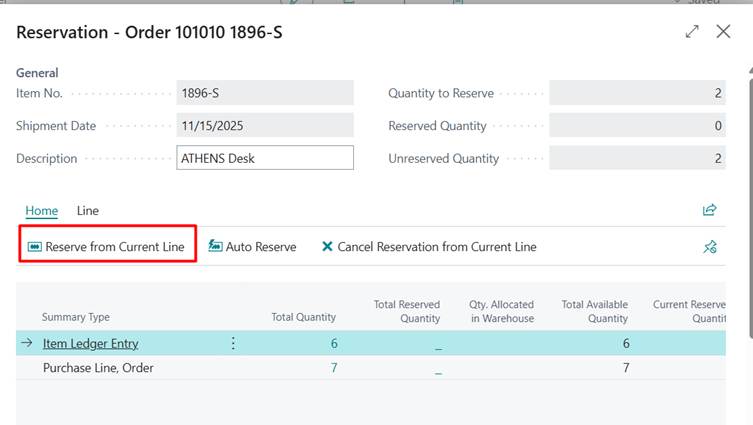
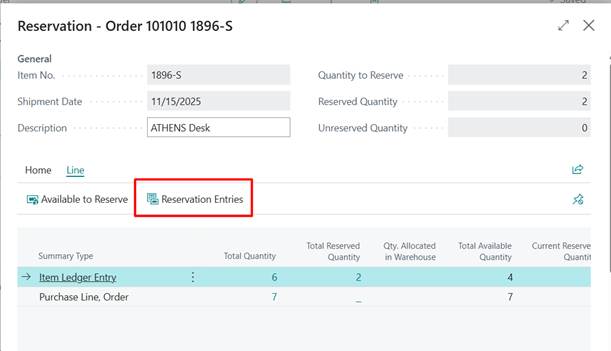
- After clicking on Reserve from the current Line user can see data in the field of Total Reserved Quantity.
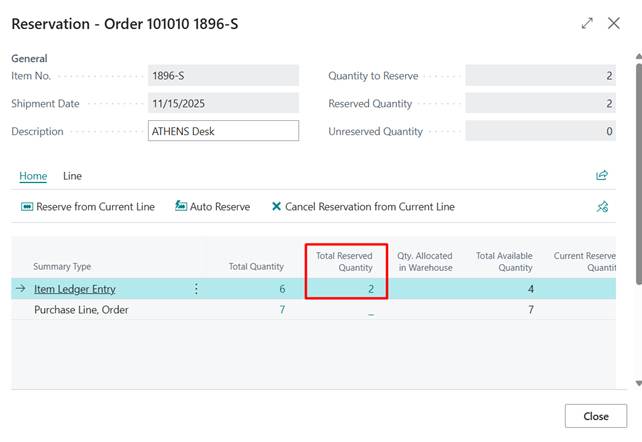
- Once a reservation is made, we can find the reserved quantity in the information line of the Sales Order.
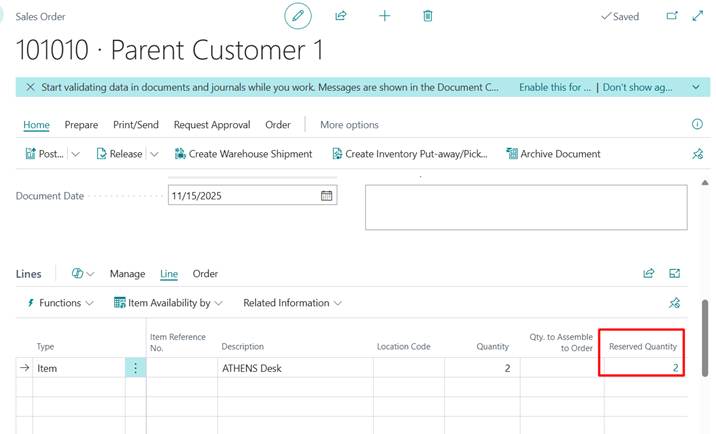
- After entries are reserve performing posting of Sales Order
Cancel a reservation
You can cancel an item reservation.
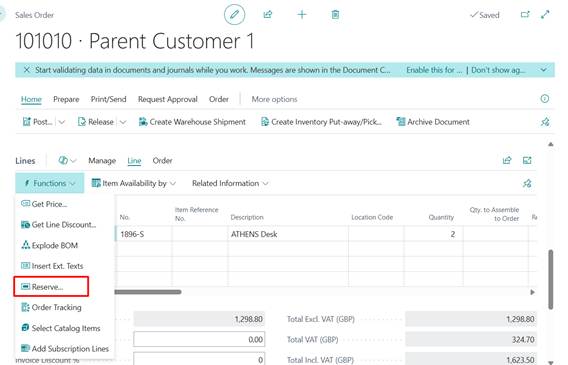
- From the document line you want to cancel a reservation from, on the Lines Fast Tab, choose the Reserve action.
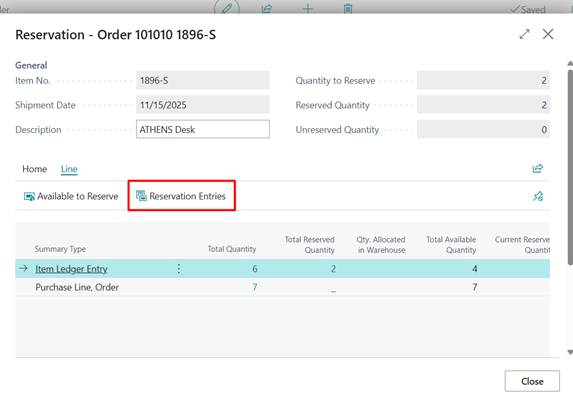
- On the Reservation page, choose the Reservation Entries action on the Lines Fast Tab.
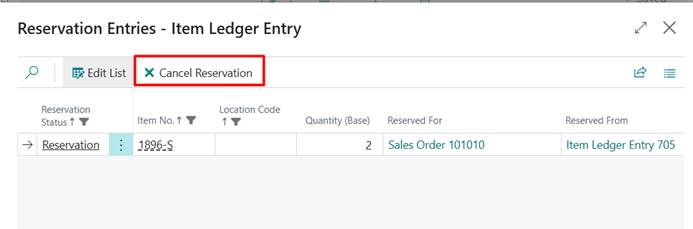
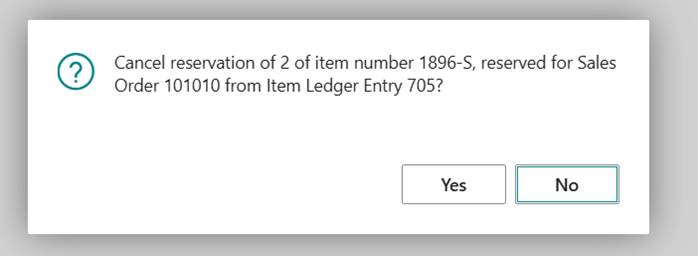
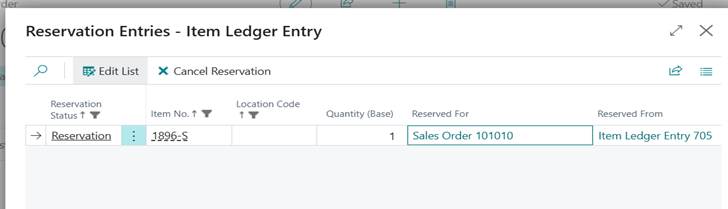
- On the Reservation Entries page, choose the Cancel Reservation action.
- Confirm the subsequent message by choosing the Yes button.
Change a reservation
You can change an item reservation.
- On the document line you made the reservation from, on the Lines FastTab, choose the Reserve action.
- On the Reservation page, choose the Reservation Entries action.
- On the Reservation Entries page, update the Quantity field on the line you want to change.
Conclusion
The Item Reservation functionality in Microsoft Dynamics 365 Business Central plays a vital role in ensuring accurate inventory allocation and reliable order fulfilment. By allowing businesses to reserve stock against specific demands, it minimizes the risk of shortages, prevents double allocation, and improves overall planning efficiency.
Prathama Deshpande
Prathama Deshpande is Business Central Consultant working with Forecloud Technologies. She is one of the key responsible person for Business Central Customization Development, Functional Implementation and Support.
No comments yet. Login to start a new discussion Start a new discussion