Forecloud Technologies Pvt. Ltd. - Allocation worksheet in Business central
The Reservation Worksheet in Business Central is a powerful tool that enables users to efficiently manage and allocate inventory across various types of demand, such as sales orders, purchase orders,
Overview
The Reservation Worksheet in Business Central is a powerful tool that enables users to efficiently manage and allocate inventory across various types of demand, such as sales orders, purchase orders, and transfer orders. It supports bulk reservation of inventory and provides a comprehensive overview of available stock alongside outstanding demand. This visibility allows users to allocate inventory in alignment with business priorities and operational needs.
The Reservation Worksheet can be accessed by entering Reservation Worksheet in the global search bar.
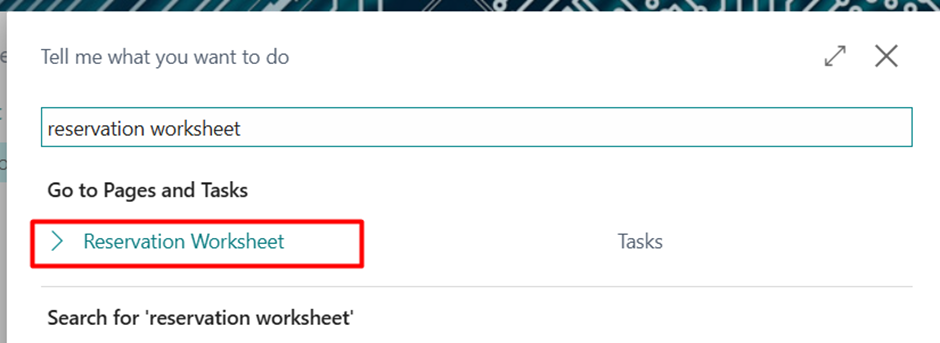
- Retrieving Demand
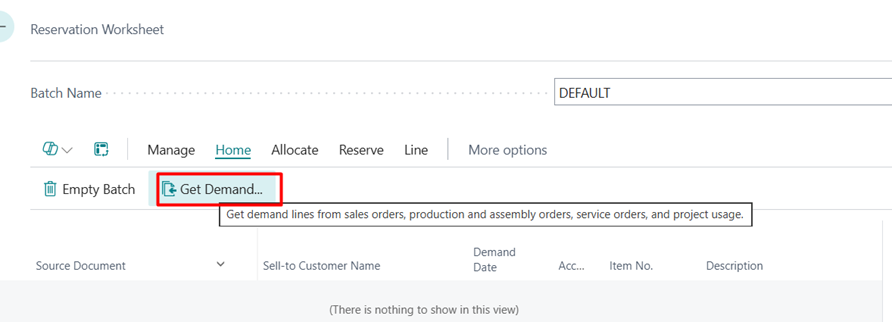
To begin, select Get Demand to define the type of demand and the item for which reservations are required.
From the drop-down list, you can choose one or more demand types:
- All
- Sales Orders
- Transfer Orders
- Service Orders
- Job Usage
- Production Components
- Assembly Components
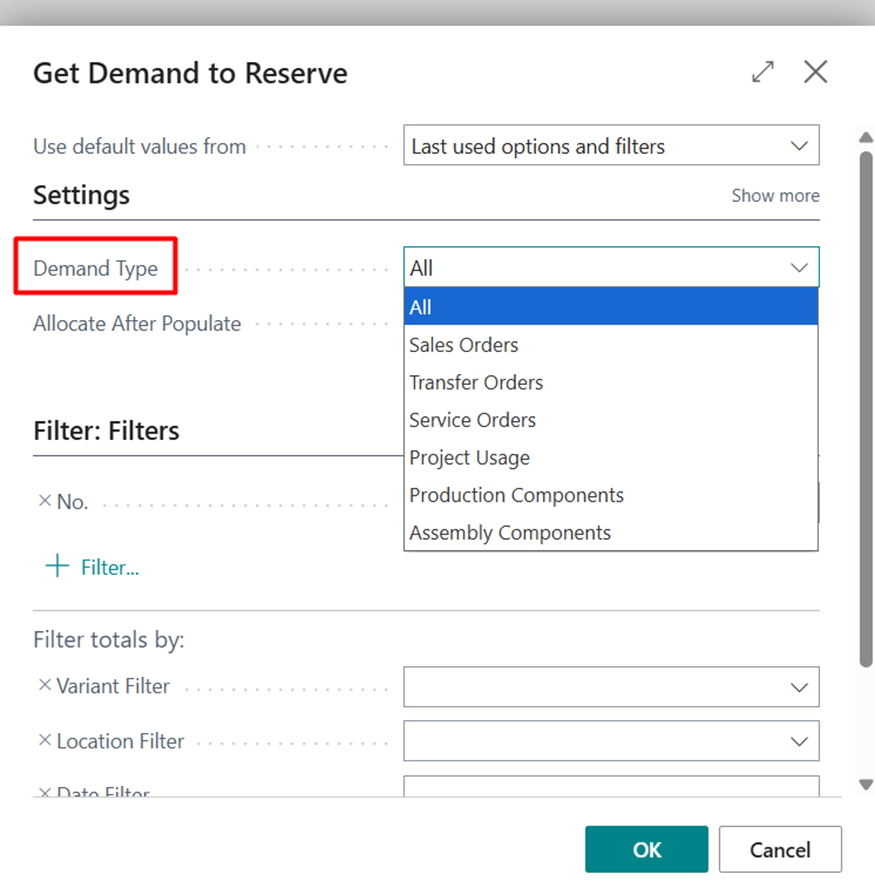
Click OK to get the demand lines.
You can add value in ‘Qty. to Reserve’ field to reserve manually.
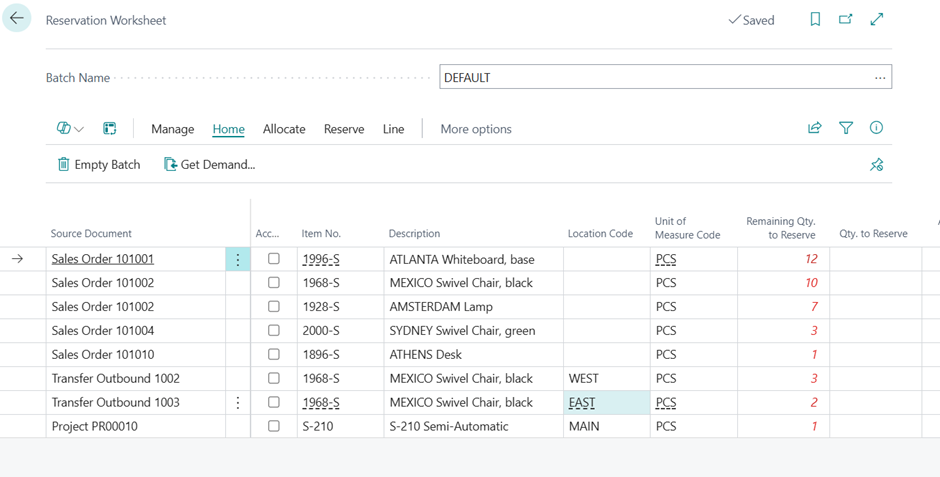
You can use allocation function for auto population of Qty, to Reserve field.
- Allocation
The worksheet displays key fields for each demand line, including:
- Remaining Qty. to Reserve
- Qty. to Reserve
- Available Qty. to Reserve
Users can either manually input reservation quantities or use system actions to automate the process:
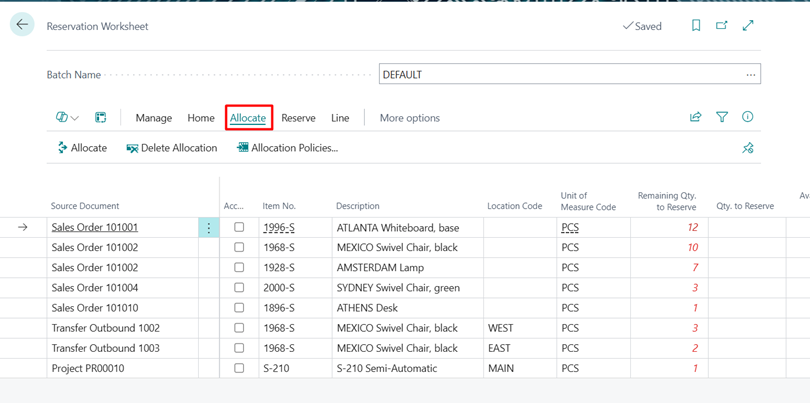
- Allocate: Automatically populates the Qty. to Reserve field based on the selected allocation policy.
- Delete Allocation: Clears all values in the Qty. to Reserve field.
- Allocation Policies: Allows selection of a preferred allocation strategy for the batch.
Allocation Policies
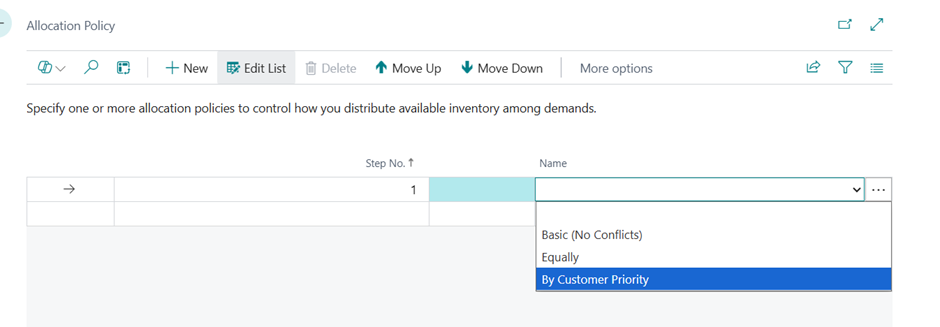
The system offers two primary allocation policy types:
Allocation Policy Types in Reservation
- Basic Allocation
Concept: Inventory is allocated sequentially based on priority (e.g., order date or processing order), without distributing stock across multiple demands.
Behavior:
- Follows a first-come, first-served approach
- Higher-priority orders are fulfilled first
- Lower-priority orders may receive partial or no allocation if inventory is insufficient
Typical Use Case: Suitable for scenarios where order priority is critical, such as key customers, urgent orders, or strict fulfillment sequencing.
b. Equally Allocation
Concept: Available inventory is distributed proportionally across all demands to ensure fair allocation.
Behavior:
- Inventory is shared among all orders
- Each order receives a proportion of available stock based on demand
- No single order is prioritized over others
Typical Use Case:
Best suited for shortage situations where fair distribution is critical, such as in retail or distribution environments.
Make Reservation
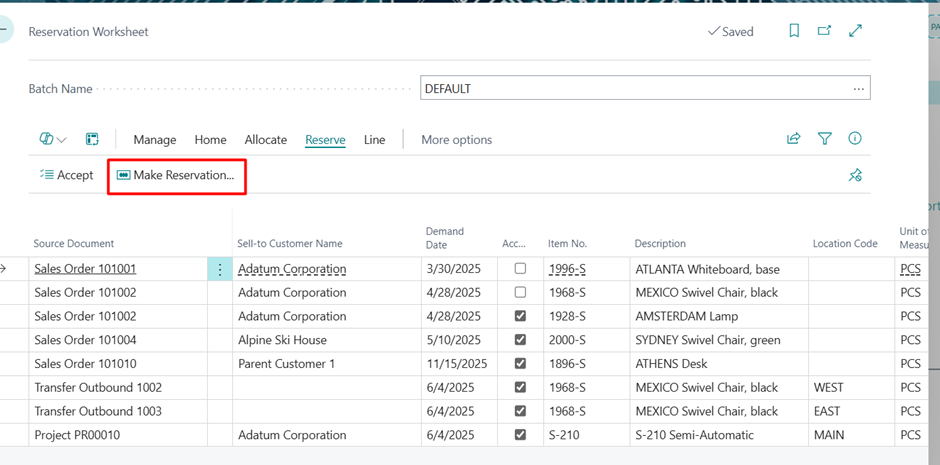
Once you are done with the allocation, click Make Reservation to confirm the reservations for all Accept lines.
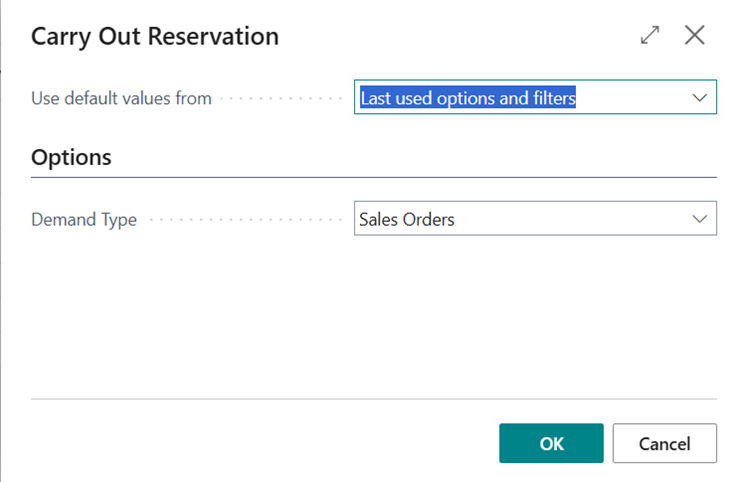
You can choose which Demand Type to reserve. Click OK to reserve.
Reviewing Reservation Entries
To verify reservation details:
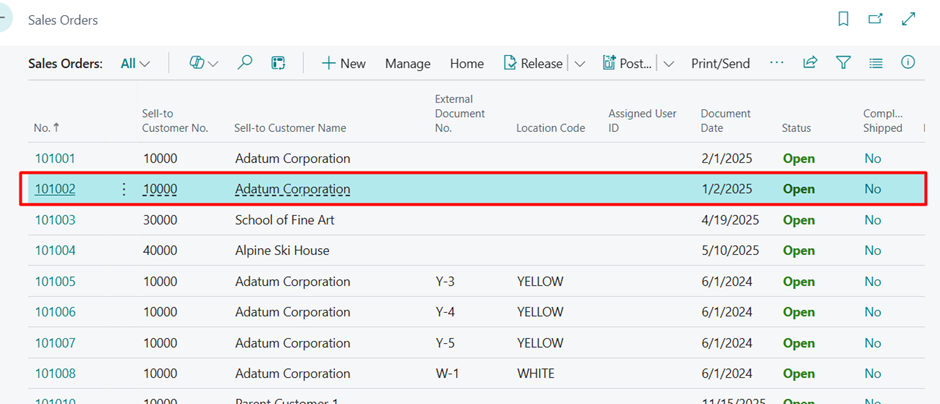
Open the relevant sales order.
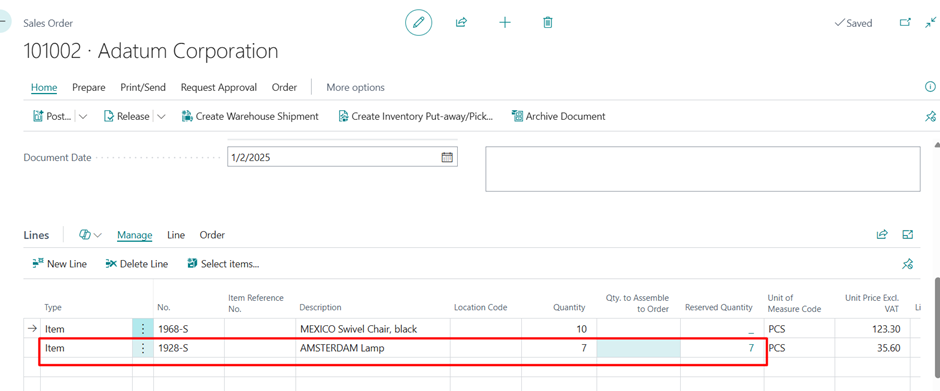
Select the reserved quantity field.
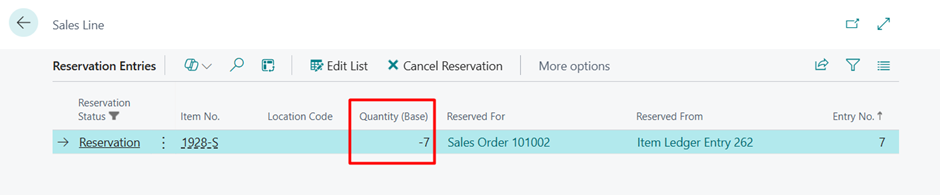
The Reservation Entries page will open, displaying all associated reservation records.
Conclusion:
This functionality ensures transparency and enables users to track how inventory has been allocated across different demands.
Prathama Deshpande
Prathama Deshpande is Business Central Consultant working with Forecloud Technologies. She is one of the key responsible person for Business Central Customization Development, Functional Implementation and Support.
No comments yet. Login to start a new discussion Start a new discussion